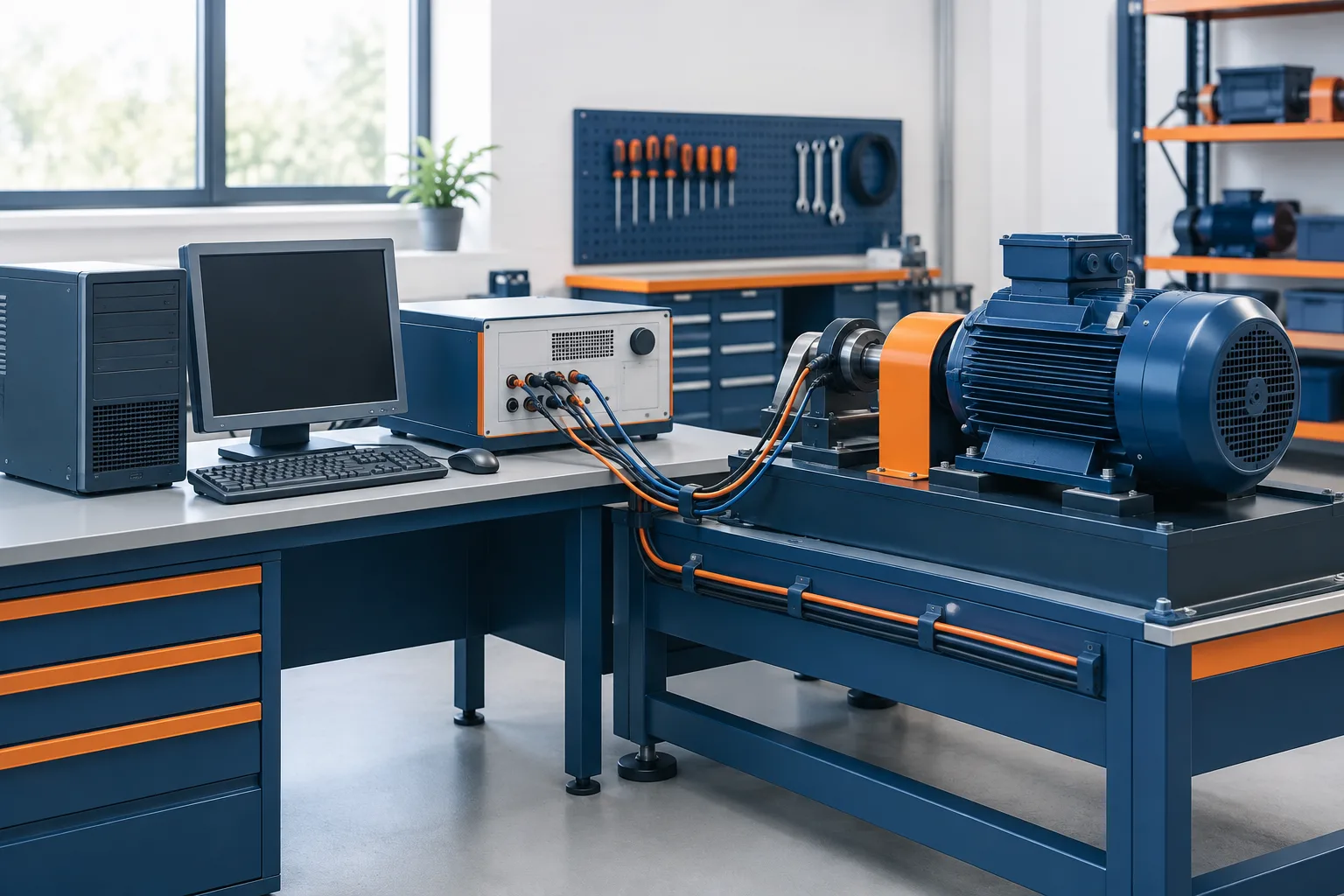
If your motor test software only runs on an older Windows computer, replacing the PC is not simply a matter of copying the application or installing a newer operating system. The station may rely on specific drivers, interfaces, license settings, data locations, or software versions. Changing any of those without checking can interrupt testing or make it difficult to retrieve results.
A safer approach is to treat the computer and test equipment as a connected system. Document the current setup, confirm what the software and instrument support, protect the existing configuration, and validate the proposed change before using it for production work.
Start with a dependency inventory
Before upgrading, replacing, or cloning the PC, record what the test station needs to operate. Keep the inventory somewhere the shop can access if the computer fails. A concise document is more useful than relying on one technician’s memory.
- Windows details: Record the Windows edition and version, along with relevant system settings. Note whether the computer is connected to the shop network or kept separate.
- Test application: Write down the software name and version, how it is installed, and where its settings and configuration files are stored.
- Instrument details: Record the tester’s manufacturer, model, firmware information, and any connected components that the software communicates with.
- Drivers and interfaces: Identify required drivers and the physical connection method, such as USB, serial, or an installed card. Include any adapters or interface hardware between the PC and tester.
- Licensing: Note how the software is licensed and whether it depends on a key, dongle, activation file, or vendor-managed process. Do not assume a license can simply be copied to another computer.
- Files and outputs: Document where test results, settings, databases, and report templates are saved. Note whether the application uses shared folders or passes information to another shop system.
- Operating procedure: Capture the steps technicians use to start a test, save results, retrieve a record, and produce a report.
Also note who can confirm each dependency: the instrument manufacturer, software provider, or the technician who maintains the station. This makes it easier to ask specific questions instead of requesting a general assurance that the software “should work.”
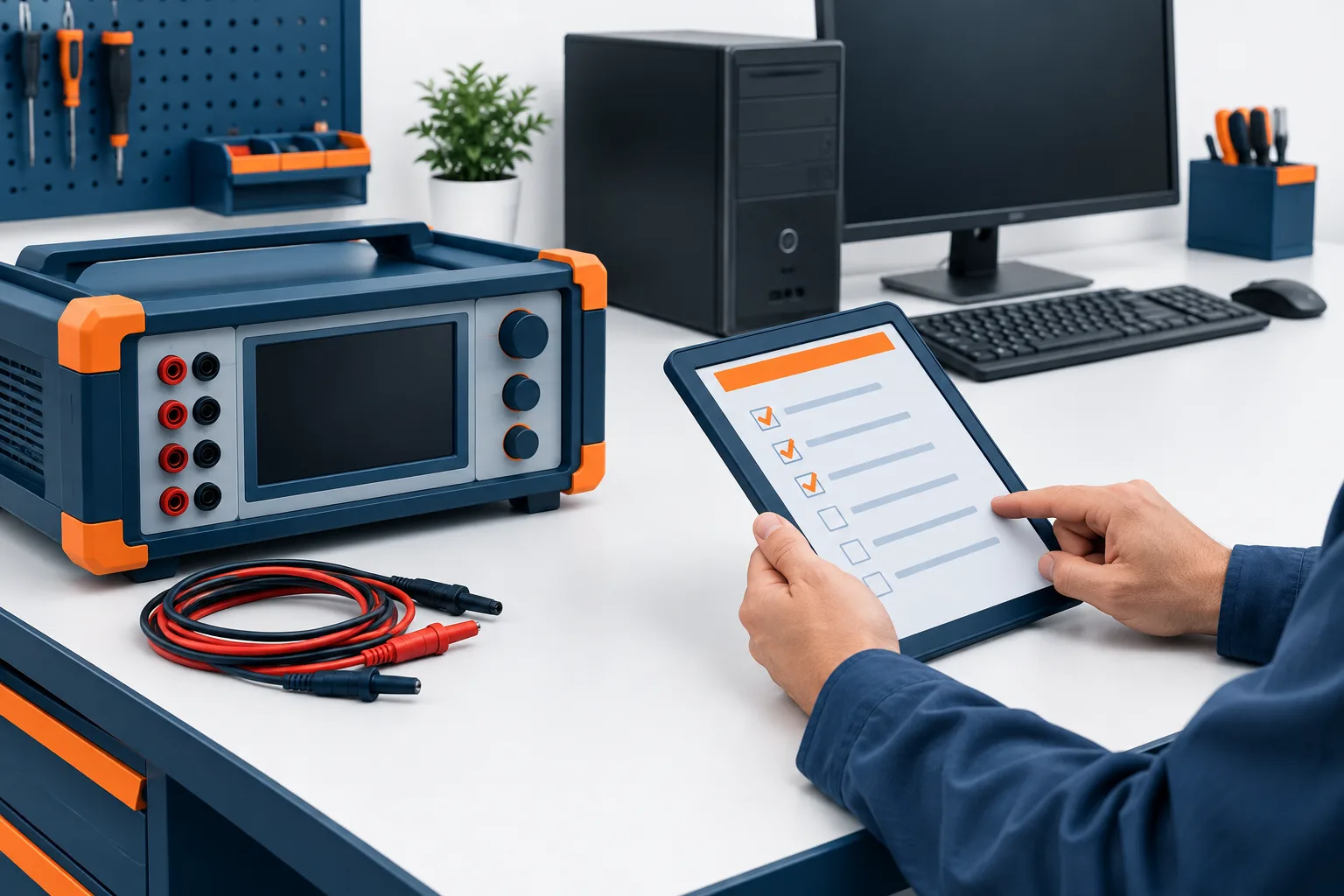
Check compatibility before choosing a path
Ask the software and instrument vendors which Windows versions they support for your exact software release, tester model, drivers, and interface. Confirm whether the current license can be transferred, whether the instrument firmware matters, and whether the proposed PC needs any particular ports or hardware.
Windows 10 reached end of support on October 14, 2025, according to Microsoft’s Windows support information. If the station depends on Windows 10, include its support status in the decision. That does not by itself establish that a newer Windows version will work with the test software or instrument. Compatibility needs to be confirmed for the complete station.
When a vendor cannot confirm support, ask what they can verify: installation behavior, driver availability, communication with the instrument, licensing, and how test records are handled. Keep the response with the station documentation. For a broader view of software, test bench, and IT dependencies, see IT considerations for motor testing software.
Choose between replacement, upgrade, or a temporary legacy setup
There is no universal answer. The right option depends on vendor support, the condition of the PC, the importance of the test station, and how much time the shop can set aside to validate a change.
Replace the PC and retain the supported application
This may be practical if the application vendor supports the new Windows environment and confirms that the required drivers, interfaces, and license can be used. Check the proposed PC for the ports and hardware the tester actually needs. Do not assume that a newer computer will include the necessary connection or support an older interface.
Upgrade the test software
A supported software release may allow the shop to move to a newer PC or operating system. Before proceeding, confirm what happens to existing settings, records, report formats, and any connection to other shop systems. Ask whether the instrument or its firmware also needs a change, and whether the vendor has a recommended migration procedure.
Keep the legacy station temporarily
If there is no verified replacement path yet, a time-limited legacy setup may help preserve test continuity while the shop gathers information. Treat it as a managed risk, not as a permanent solution by default. Limit the computer’s network access to what the station needs, restrict who can use it, protect its data, and document who owns the follow-up decision.
Security controls should not interfere with the test equipment or vendor support. Have the appropriate technical support person review any network or access changes. NIST’s configuration management guidance offers a useful framework for recording and controlling system changes.
Protect the current setup and its records
Before making changes, confirm that the shop has a recoverable copy of the important data and, where feasible, a recovery plan for the PC itself. Include application settings, test results, databases, report templates, and any files needed to reinstall or configure the software. A folder copy or disk image can be useful, but neither proves that the station will work on different hardware.
Check that backups include the right locations and that someone knows how to retrieve them. If the station is essential to production, plan how the shop will continue or pause testing if the migration fails. Zevonix describes versioned backups for test results, QA folders, and calibration records, along with restore testing. More on protecting shop records is available in this guide to backup planning for motor shops.
Trial the change away from production
Do not make the production bench the first place you discover a driver conflict or licensing problem. Set up the proposed configuration away from normal testing if possible. Keep the existing PC unchanged and available until the new setup has passed the shop’s agreed checks.
Write down the change plan before starting. Include the proposed configuration, the person responsible, the vendor contacts, the data to preserve, and the steps for returning to the previous setup. Record what is being changed and who approves the change. For a related approach to planning a computer change around shop operations, see how to plan a test-bench computer update.
Define acceptance checks before returning the bench to service
An application that opens is not enough to establish that a migrated station is ready. Agree on practical checks with the instrument vendor and shop before the change. Depending on the setup, those checks may include:
- Confirming that the software detects and communicates with the tester.
- Checking that required settings and saved configurations are present.
- Running representative test workflows using the shop’s established procedures.
- Confirming that results save to the intended location and can be retrieved afterward.
- Reviewing report output for expected fields and formatting.
- Recording the outcome, any issues, and approval to return the station to service.
The shop and vendor should determine what results are acceptable for that specific instrument and process. If a check fails, stop and use the documented rollback plan rather than improvising changes on the production station.
Frequently asked questions
Should we upgrade the existing PC or replace it?
Base the decision on the PC’s condition, vendor support, required interfaces, and the effort needed to validate the result. Compare the options with the instrument and software vendors before changing the production setup.
Is cloning the old computer enough?
No. A clone may preserve files and settings, but it does not confirm that the software, drivers, license, and tester will work with different hardware. Treat it as one possible recovery measure, then verify the complete station.
What if the instrument manufacturer no longer supports the software?
Document what the manufacturer can and cannot confirm. Ask about supported replacement software, available migration guidance, and any known requirements for the instrument. If the legacy station must remain temporarily, document its controls, backup approach, owner, and review point.
Make the change a controlled decision
A motor test PC is part of the test process, not just an office computer. Inventory its dependencies, protect the current configuration, confirm compatibility, and agree on acceptance and rollback checks before making a change. If you want help reviewing test-bench data protection or the IT dependencies around a station, contact Zevonix at (386) 260-0777.