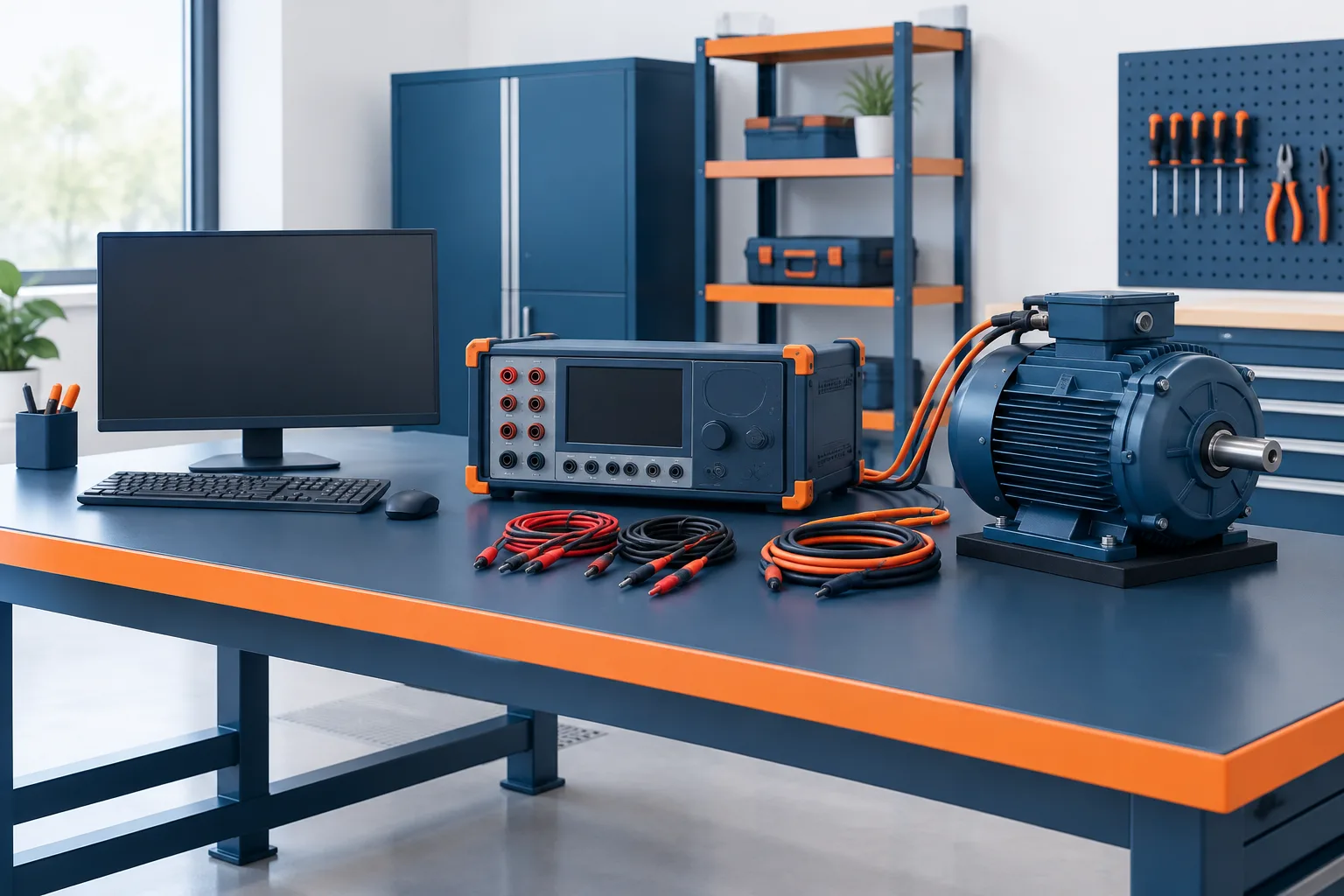
To update a test-bench computer without disrupting test software, treat the change as a production equipment update, not routine office maintenance. A Windows update or driver change can affect the application, instrument connections, test sequences, or saved results. The goal is to keep the bench secure while giving the shop time to check compatibility and recover if something changes unexpectedly.
A practical process has a few parts: document what the bench depends on, choose an appropriate maintenance window, preserve the current setup, and verify the actual test workflow after the update. That approach helps technicians know what changed and whether the station is ready to return to service.
Document the test-bench setup before making changes
Start with an inventory of the complete test stack. Do not stop at the name of the test application. Record enough detail to identify the software and connections that make the station work, including:
- The test application name and installed version.
- Instrument models and how each one connects to the computer, such as through a network, USB, or serial connection.
- Instrument drivers, runtimes, and any other components required by the application.
- Test sequences, configuration files, shop-specific scripts, and the locations where they are stored.
- License details and any activation requirements needed after a restore or reinstall.
- How results and reports are saved, and whether the bench exchanges information with other shop systems.
Check the vendor documentation and, when needed, ask the software or instrument vendor about the proposed change. A test application may depend on a particular driver or runtime, and the relevant compatibility information may not be obvious from the computer itself. For a broader look at protecting the software and data used for motor testing, see our guide to IT support for motor testing software.
Keep the inventory somewhere technicians and the person responsible for IT can find it. A record of the working versions and settings gives you a useful comparison if the bench behaves differently after an update.
Assess the update before installing it
Identify exactly what is changing. Is it an operating-system update, a driver, the test application, or more than one of those? Avoid bundling unrelated changes together where practical. If a problem appears, a smaller change set makes it easier to narrow down the cause.
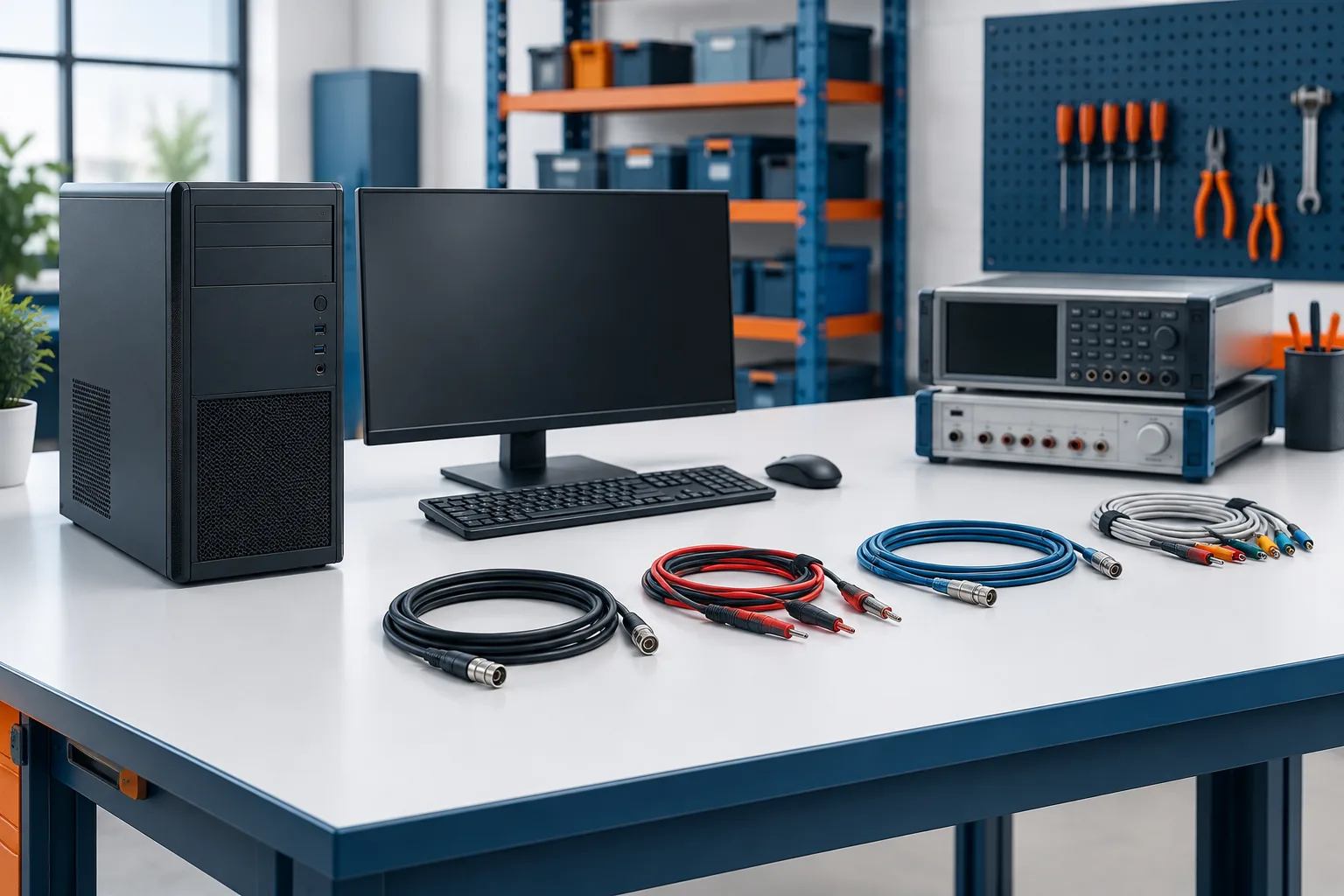
Review the update information and compatibility guidance available from the software and instrument vendors. If there is a separate computer or test station available, use it as a pilot only if it represents the production bench closely enough. An ordinary office PC is not a meaningful compatibility test for a station with different instruments, drivers, or test software.
For operating-system updates, use a planned update process rather than assuming that every update must be installed immediately or that production equipment should be left untouched indefinitely. Microsoft’s Windows deployment planning guidance can help teams organize testing and deployment. The shop should still account for its particular bench hardware, software, and production needs.
Choose a maintenance window with the bench owner
Coordinate the change with the technician or supervisor responsible for the station. Agree on when the bench will be available, who can approve the work, who will perform the post-update checks, and when the station needs to be back in service.
Schedule the work when no repair or test run is underway and there is enough time to troubleshoot or restore the prior setup if necessary. Do not begin just before a job depends on that bench unless the shop has an agreed backup plan. If production conditions change, reschedule rather than interrupting an active test.
Document the planned change and the criteria for calling it complete. For example, the computer restarting successfully is not enough by itself. The station should also detect its instruments and complete the checks that matter to the shop.
Protect the current configuration and data
Before installing updates, make sure the important items are protected and can be accessed if recovery is needed. That may include test sequences, configuration files, application installers, driver packages, license information, and recent test results. Where practical, preserve a system image or another recovery option for the computer’s current working state.
Confirm that backups are current and that the responsible person knows how to retrieve the files. A backup that has never been checked may not be enough for a time-sensitive recovery. Zevonix provides versioned backups for test results, QA folders, and calibration records. The shop should also consider what recovery method is appropriate for the test-bench computer and its installed software.
For more on protecting shop records and planning recovery, see our article on backup solutions for motor shops. Keep the current settings and a note of any planned changes together so the person verifying the bench can compare the result with its previous working state.
Install the update, then verify the full test workflow
After the update, check the bench in a deliberate order. Begin with the computer and application, then move through the connected equipment and a representative test:
- Confirm the computer starts normally and the test application opens.
- Check that the required instruments are detected and communicate with the software.
- Review the application settings, drivers, and test sequence for unexpected changes.
- Run an approved known-good test or reference check, following the shop’s established procedure.
- Confirm that results and reports are produced correctly and saved to the expected location.
- Record the update, versions or settings changed, verification performed, and any issues found.
Verification should reflect how the station is actually used. NI’s guidance on verification and validation with TestStand is relevant to teams using that software, but the checks for any bench should match its own application and instruments. For calibration-related records, our guide to tracking calibration status for test instruments may also be useful.
Have a recovery decision ready
If an instrument disappears, a test sequence fails, or reports no longer save as expected, stop before using the bench for production testing. Record the symptoms and what changed. The bench owner and IT support can then decide whether to troubleshoot the update or return to the previous working configuration.
Do not assume every update can be reversed with a single step. Recovery may depend on the operating system, the update, the software license, and the way the station was set up. That is why it helps to have a recovery option, installers and configuration files available, and a clear person responsible for the decision before the work begins.
Frequently asked questions
Should I install Windows updates on a computer that runs test equipment?
Plan and assess them rather than installing blindly or postponing them indefinitely. Check vendor compatibility information, protect the current setup, schedule a maintenance window, and verify the bench before returning it to production.
How can I check whether an update will work with my test software and instruments?
Identify the test application, instrument models, drivers, runtimes, and configuration files, then review the relevant vendor guidance. If possible, test on a station that closely matches the production bench.
When should a repair shop schedule test-bench computer updates?
Choose a time agreed with the bench owner when no test is in progress and there is enough time for verification and recovery. Set a clear point when the station must be ready, and reschedule if the production window is no longer suitable.
What should I do if an update breaks an instrument connection or test sequence?
Take the bench out of production use, note the symptoms and changes, and involve the person responsible for IT and the bench. Troubleshoot or restore the prior configuration according to the shop’s recovery plan.
Keep test-bench changes controlled
Reliable test-bench updates depend on knowing what the station needs, making changes at a workable time, protecting its configuration, and checking real test functions afterward. If your shop needs help managing test-bench computers and the data they rely on, contact Zevonix at (386) 260-0777 to discuss the environment and a practical next step.